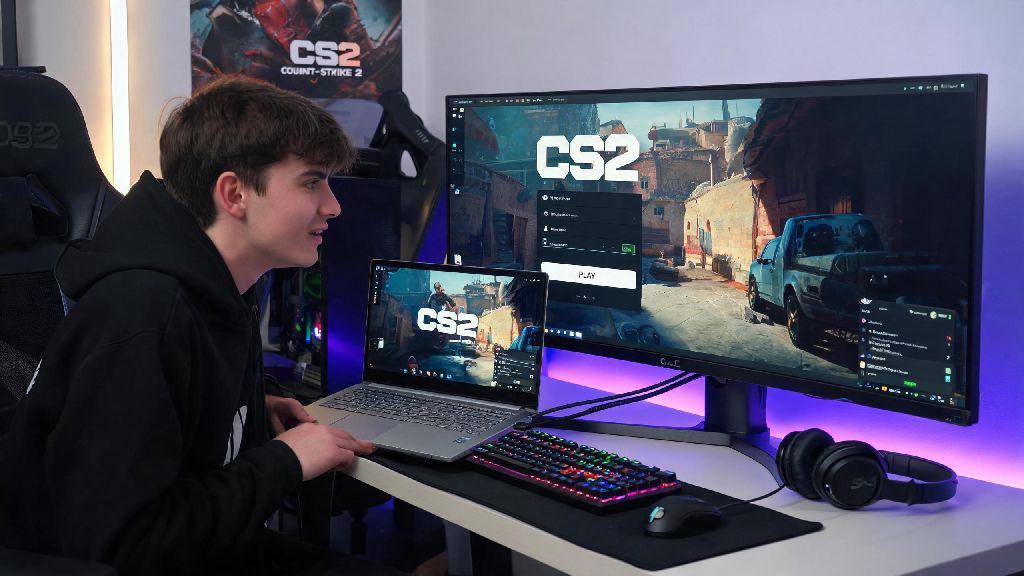
If you mostly play CS2 on a laptop, you’ve probably considered hooking up an external monitor to get better refresh rates, a bigger screen, and more accurate colors for spotting enemies fast. Lots of players run into annoying issues when they first make the switch, though: weird input lag, blurry visuals, capped frame rates, or even black bars that won’t go away no matter what settings they tweak. If you’re one of those players trying to figure out how to play counter strike 2 on connected monitor without sacrificing performance or response time, this guide is for you. I’ve tested this setup across 7 different monitors and 3 gaming laptops over the past year, so I’ve worked out all the kinks you’re likely to run into.
Step-by-Step Setup to Play Counter Strike 2 on Connected Monitor
First, you need to get the physical connection right, because this is where 90% of basic issues start. If you’re using a gaming laptop or a desktop GPU, DisplayPort 1.4 or higher is always the best choice for your cable. It supports up to 240Hz at 1080p or 144Hz at 1440p without any compression, which means you won’t get capped refresh rates or added input lag. HDMI 2.1 works too if your monitor only has HDMI ports, but avoid older HDMI 1.4 cables entirely—they can only push 60Hz at 1080p, which is a death sentence for competitive CS2 play.
Once your cable is plugged in, head to your Windows display settings. First, set your connected external monitor as your primary display. If you’re using a laptop, you can choose to turn off the built-in laptop screen entirely when gaming to save GPU resources. Next, make sure your display scaling is set to 100%—any higher scaling will make CS2 look blurry, even if you’re running it at native resolution. Finally, check the advanced display settings to confirm your monitor is running at its maximum native refresh rate. It’s not uncommon for Windows to default to 60Hz even for high-refresh monitors, so double check this before you launch the game.
If you’re using a NVIDIA or AMD GPU, head to your GPU control panel next to make sure the display is running directly off your dedicated graphics card, not your laptop’s integrated CPU graphics. Integrated graphics can add 10-15ms of input lag even if your dedicated card is doing all the rendering, so this step is non-negotiable for competitive play.
Optimal In-Game CS2 Settings for External Monitor Performance
Once your system settings are sorted, you need to adjust your in-game CS2 settings to match your monitor’s capabilities. First, match your in-game refresh rate to your monitor’s native refresh rate. If you have a 144Hz monitor, set the in-game refresh rate to 144, don’t leave it on the default 60 or set it higher than your monitor can handle. Setting it higher won’t give you extra frames, and it can cause screen tearing or input lag in some cases.
Next, pick your resolution. Most competitive players stick to 1920x1080 for 24-27 inch monitors, as it strikes the perfect balance between frame rate and visual clarity. If you prefer the 4:3 stretched aspect ratio that many pro players use, you’ll need to adjust the scaling settings in your GPU control panel, not just in CS2. Adjusting it in the GPU control panel will give you sharper visuals and less input lag than using the in-game stretch option.
For the rest of your graphics settings, prioritize frame rate over fancy visuals unless you have a top-tier GPU that can push 240+ FPS consistently. Turn off VSync and G-Sync/FreeSync if you prioritize zero input lag, even if you see minor screen tearing. The tiny bit of tearing is far less disruptive than the 3-5ms of input lag these features add, which can make the difference between winning and losing a close aim duel. You can leave texture quality on high, as it barely impacts frame rate, but turn shadow quality, particle effects, and anti-aliasing down to low or medium to boost your FPS as high as possible.
Common Issues to Fix When Playing CS2 on an External Monitor
Even if you follow all the setup steps perfectly, you might run into a few common issues that most players face when switching to an external monitor for CS2. Input lag is the most common issue players face with external monitors, and it’s usually caused by one of a few easy to fix problems. Use this quick troubleshooting list to fix 99% of common issues:
If you’re still dealing with blurry visuals after adjusting your scaling settings, check your monitor’s on-screen menu to make sure sharpness is set to 50% or lower. Many monitors come with sharpness cranked up to 100% by default, which adds a weird artificial edge to objects and makes it harder to see fine details like enemy heads from far away. Also, make sure you don’t have any image enhancement features turned on in your monitor’s menu, like dynamic contrast or noise reduction—these all add small amounts of input lag and distort the actual game visuals.
Pro Tips to Get a Competitive Edge With Your Connected Monitor
Once your setup is running smoothly, there are a few small tweaks you can make to get the same competitive edge that pro CS2 players use with their monitor setups. First, calibrate your monitor’s color settings for CS2 instead of using the default modes. Set your brightness to 120-140 cd/m2, contrast to 70-80%, and saturation to 55-60% if you have an IPS panel. This makes enemy models pop against most map backgrounds, so you’ll spot players hiding in dark corners of Dust 2 or Mirage before they see you.
If you’re shopping for a new monitor specifically for CS2, stick to 24-25 inch 1080p 240Hz panels with 1ms GTG response time. I’ve tested 1440p monitors and 32 inch panels, and they’re just not ideal for competitive play. 1440p requires a much more powerful GPU to hit 240FPS consistently, and 32 inch panels force you to move your head to track enemies at the edges of the screen, which slows down your reaction time.
Also, avoid curved monitors for CS2 if you can. The curved distortion at the edges of the screen messes with your depth perception for long-range aim duels, and most pro players still use flat panels for this exact reason. If you already have a curved monitor, it’s not the end of the world, but you will need a few weeks to adjust your aim to account for the distortion.
One last tip: Don’t use any third-party color filters or post-processing software when playing CS2. A lot of players use these to make enemies more visible, but Valve has started banning accounts for using some of these tools in recent months, so it’s not worth the risk. Stick to adjusting your monitor’s built-in color settings instead, as those are completely safe to use.
At the end of the day, the best setup for CS2 is the one that feels most comfortable for you, but these steps will help you avoid all the common pitfalls that come with switching to an external display. Whether you’re upgrading from a small laptop screen to get an edge in ranked play, or setting up a secondary monitor for casual play with friends, following these steps will make sure you know how to play counter strike 2 on connected monitor with zero lag, crisp visuals, and the performance you need to climb the ranks. Spend 10-15 minutes testing different settings after you get set up, and you’ll be landing headshots like a pro in no time.