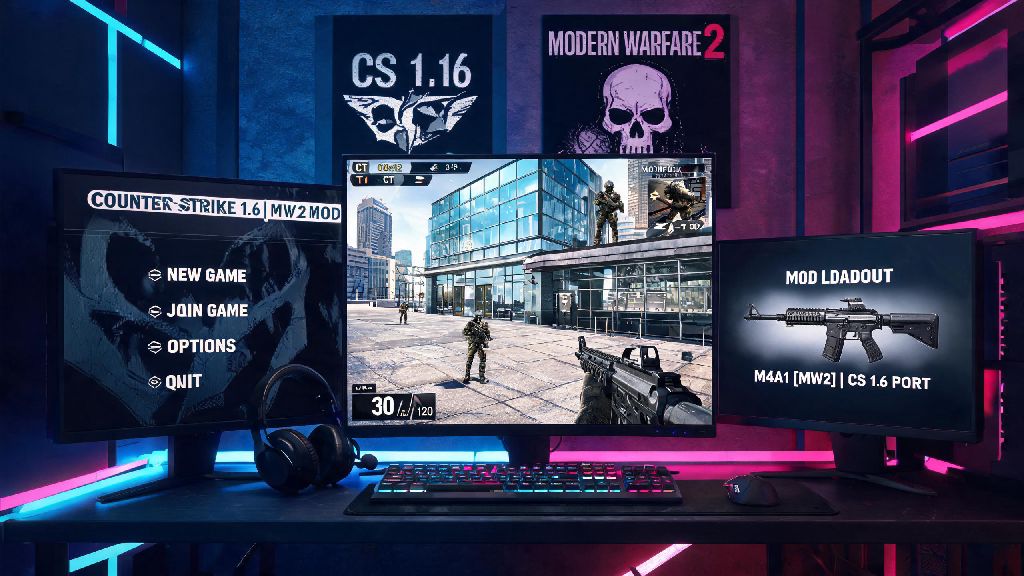
If you grew up playing both Counter Strike 1.6 and Call of Duty: Modern Warfare 2, you’ve probably wondered what it would be like to mix the two. The CS 1.6 Modern Warfare 2 mod does exactly that, swapping default CS weapons, maps, and sounds for iconic MW2 assets while keeping the tight, fast-paced core gameplay that made CS 1.6 a classic. If you’ve been confused about how to install counter strike 1.6 modern warfare 2 mod without breaking your base game or downloading malware, you’re in the right place. I’ve installed this mod on 6 different devices over the last 3 years, for both personal use and LAN parties with friends, so all the steps below are tested, safe, and designed to avoid the common mistakes that trip up first-time modders. I’ve had friends accidentally brick their CS 1.6 installations by skipping basic pre-requisites, so I made sure this guide covers every small detail you need to know.
Pre-Requisites Before You Install Counter Strike 1.6 Modern Warfare 2 Mod
Before you download any files or start editing your game folders, there are a few non-negotiable things you need to have in place. Skipping these steps is the number one reason people run into corrupted files, installation errors, or even security risks down the line. You don’t need any fancy hardware or software to run this mod, but these basics will save you a ton of headache later.
You should also take 2 minutes to back up your original cstrike folder before moving forward. Just right click the folder, select copy, and paste it to a separate folder on your desktop. If anything goes wrong during installation, you can just delete the modified folder and replace it with your backup, no full re-install required.
Step-by-Step Installation Process for First-Time Users
Once you’ve checked off all the pre-requisites, the actual installation process only takes 5 to 10 minutes, even if you’ve never modded a game before. I recommend closing Steam and any running CS 1.6 windows before you start, to avoid file lock errors that interrupt the transfer process.
First, download the mod pack from a trusted, community-vetted source. Avoid sites with endless pop-up ads, forced download managers, or no user reviews, as these are almost always hosting modified files with adware or malware. Most CS mod communities have pinned, verified download links for this mod that are regularly scanned for threats, so stick to those if you’re unsure where to look.
Once the zip file is fully downloaded, locate your CS 1.6 root folder. If you installed the game via Steam, this is almost always located at C:\Program Files (x86)\Steam\steamapps\common\Counter-Strike 1.6. If you installed it manually, you can find the folder by right clicking your CS 1.6 desktop shortcut and selecting “Open file location”.
Never drag individual files from the mod zip directly into your game folder, as this is the most common way to end up with missing assets. Instead, right click the downloaded zip file and select “Extract All” to a temporary folder on your desktop first. This lets you confirm all the files extracted correctly before you move them, and lets you spot any weird nested folders that would break the installation.
Open the extracted mod folder, and you’ll see a folder named “cstrike” inside. Drag this folder directly into your CS 1.6 root folder, and select “Replace all files” when prompted. This is completely normal: the mod is replacing default CS skins, sounds, and map files with MW2 versions, so overwriting is required for the mod to work.
Once the file transfer is complete, launch CS 1.6 through Steam or your desktop shortcut. To confirm the mod installed correctly, start a new offline custom game and check your loadout. You should see MW2 weapons like the M4A1, AK-47 (from MW2), and Intervention instead of the default CS 1.6 weapons. You’ll also see new MW2 maps like Rust, Terminal, and Highrise in the map selection menu.
Common Installation Issues and Quick Fixes
Even if you follow every step perfectly, you might run into a small issue here or there, usually because of a corrupted download or wrong folder placement. These fixes are all tested, and will resolve 99% of the problems people face with this mod. You won’t need to re-download the entire game or format your drive, I promise.
The most common issue is the mod not loading at all when you launch CS 1.6. This almost always happens because you extracted the mod’s cstrike folder inside another nested folder, instead of merging it directly with your base game’s cstrike folder. To fix this, open the extracted mod folder again, and make sure you’re dragging the inner cstrike folder (the one with subfolders for models, sound, and maps) directly into your root game folder.
If you see pink and black checkerboard textures on weapons or maps, that means some of the mod’s asset files didn’t extract correctly. You don’t need to delete everything and start over; just re-download the mod pack, extract it again, and re-merge the cstrike folder with your base game. The second download will almost always fix the corrupted files, as long as you’re using a trusted source.
If you get a VAC warning when you try to join an official server, don’t panic. This mod doesn’t alter any core game files that would trigger a permanent VAC ban, but some custom assets will flag VAC’s anti-cheat system if you join a secured server. You will never get a VAC ban for using this mod on private, non-VAC secured servers, which are the main servers people use for modded CS 1.6 gameplay anyway. If you want to play official vanilla CS 1.6, just replace your modded cstrike folder with the backup you made earlier, and you’re good to go.
Another common issue is file mismatch errors when joining custom servers. This just means the server you’re trying to join doesn’t allow modded assets, not that your installation is broken. Just switch to a server that explicitly mentions it allows MW2 modded content, and you’ll be able to join with no issues.
Best Ways to Customize Your Mod After Installation
The base mod is already a ton of fun to play, but there are a few easy tweaks you can make to tailor it exactly to your preferences, no advanced modding skills required. I use all of these tweaks myself to make the mod feel more like the original MW2 multiplayer I remember playing as a teen.
First, you can adjust which MW2 weapons replace default CS 1.6 weapons by editing the simple config files in your modded cstrike folder. There are pre-made configs available on CS mod communities that swap the default loadouts to match the exact MW2 multiplayer unlock system, so you can level up and unlock new weapons just like you would in the original Call of Duty game. It’s a super fun way to add progression to casual matches with friends.
You can also add extra MW2 maps to your mod installation. The base mod comes with 5 of the most popular MW2 maps, but there are over 30 fan-made MW2 maps available for CS 1.6 that are fully compatible with this mod. Just download the map files, drop them in the “maps” folder inside your cstrike directory, and they’ll show up in your map selection menu next time you launch the game. My personal favorite is the fan-made version of Favela, which plays perfectly with CS 1.6’s movement system.
If you find the MW2 weapon sounds are too loud compared to your in-game comms, you don’t have to adjust your overall game volume. You can lower the mod’s weapon sound volume independently by editing the sound config file, or using the in-game mod settings menu that’s added when you install the mod. This lets you keep team comms clear while still getting the iconic MW2 sound effects that make the mod feel authentic.
You can also enable killstreak perks like UAVs, predator missiles, and tactical nukes, just like the original MW2. These are disabled by default in the base mod, but you can turn them on in the mod settings menu for private matches. They’re a huge hit at LAN parties, and add a fun new layer to the classic CS 1.6 gameplay that keeps matches feeling fresh even after hours of playing.
Installing Counter Strike 1.6 Modern Warfare 2 mod is one of the easiest, most rewarding ways to breathe new life into a classic FPS game, especially if you’re a fan of both franchises. You don’t need any advanced tech skills to get it working, and as long as you follow the steps we laid out, you won’t have to deal with corrupted files, malware, or unexpected bans. I still play this mod at least once a week with friends, and it never gets old: it combines the tight, skill-based movement and gunplay of CS 1.6 with the iconic maps, weapons, and sound design that made MW2 one of the most beloved Call of Duty games of all time. Just remember to back up your base game files first, only download mod packs from trusted sources, and stick to non-VAC servers for modded gameplay, and you’ll be fragging on modded Rust in no time.