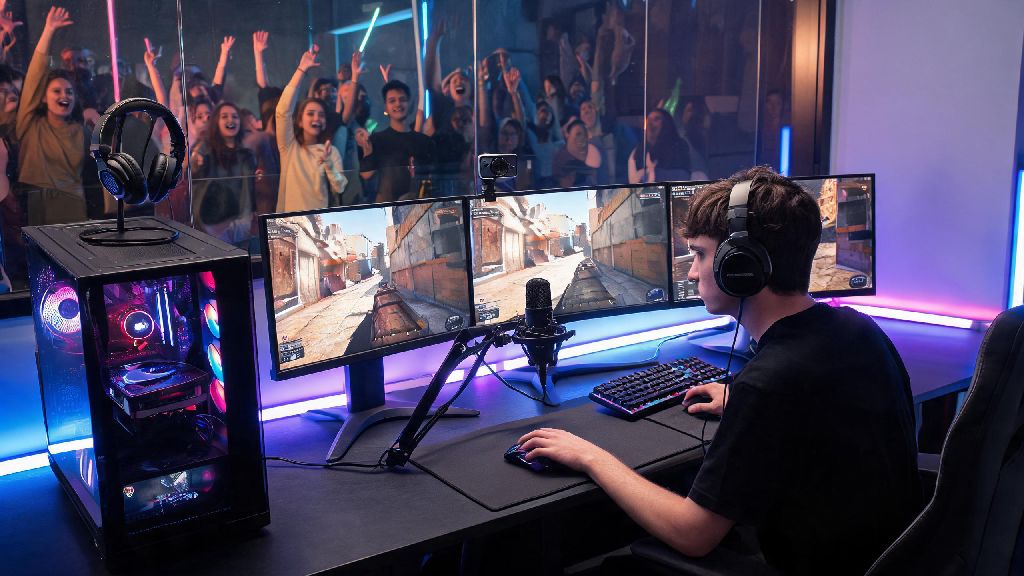
If you’ve ever pulled off a clutch 1v5 in Counter Strike 2 and wished you could share the moment live with friends or build a community of fellow CS2 fans, you’re in the right place. Learning how to stream Counter Strike 2 doesn’t require a top-tier $3k PC right out the gate, and you don’t need professional production experience to put together a watchable, fun stream. I’ve been streaming CS2 for almost two years, growing a small but loyal audience of 1.2k average viewers, and I’ve tested every setting, tool, and workaround to cut through the noise and find what actually works for casual and aspiring full-time streamers alike. This guide will walk you through every step, from pre-stream prep to mid-stream tweaks that keep viewers coming back week after week.
Pre-Stream Setup: How to Stream Counter Strike 2 Without Lag or Frame Drops
The biggest complaint new CS2 streamers have is losing in-game FPS when they turn on their stream, and that’s almost always tied to bad pre-stream setup, not bad hardware. You don’t need a flagship PC to stream at 1080p 60fps, but you do need to optimize the gear you already have first. 16GB of RAM is the absolute minimum if you’re running the game and streaming software on the same PC, and you’ll see far better performance with 32GB if you plan to run a facecam, chat overlay, and Discord at the same time.
Your internet connection is just as important as your PC specs, and wired internet is non-negotiable for consistent streams. Wi-Fi might work for regular ranked play, but random signal drops will cut out your stream mid-clutch and make viewers leave immediately. Run a quick speed test before you go live: you need at least 6Mbps upload for 720p 30fps streams, and 10Mbps upload for 1080p 60fps streams.
Before you hit that “go live” button, run through this quick pre-stream checklist to avoid common last-minute issues:
Optimal CS2 In-Game and Streaming Settings for Clear Viewing
Your number one priority when streaming CS2 is keeping your own in-game performance smooth first. There’s no point streaming 4K resolution if you’re getting 30 FPS and missing shots because of input lag, and viewers would rather watch a smooth 720p stream of you hitting clips than a choppy 4K stream of you dying to silver players.
Set your in-game resolution to match your stream output resolution to avoid unnecessary strain on your GPU. Most streamers use 1080p, but if your PC can’t handle that, 720p is totally fine for fast-paced shooters where viewers care more about seeing your aim than high-resolution skin details. Turn off unnecessary in-game effects like motion blur, depth of field, and excessive anti-aliasing – these effects look cool for single-player games, but they make fast CS2 gameplay look blurry for viewers anyway, and they waste valuable GPU resources.
For your streaming software settings, use hardware encoding instead of software encoding whenever possible. Software encoding uses your CPU, which will tank your in-game FPS during intense matches with lots of smokes, utility, and player models on screen. If you have an Nvidia GPU, use NVENC encoding; if you have an AMD GPU, use AMF encoding. Keep your bitrate within platform guidelines too: for Twitch, stick to a maximum of 6000 kbps for 1080p 60fps, and 4500 kbps for 720p 60fps, so viewers with slower internet don’t get stuck buffering every 30 seconds.
Engagement Tips to Keep Your CS2 Stream Viewers Coming Back
Streaming CS2 isn’t just about playing well – tons of people can hit Global Elite rank, but only a handful build loyal audiences that show up to every stream. The most popular CS2 streamers don’t just play the game, they make viewers feel like they’re part of the action too.
Talk through your thought process as you play, even when you’re in tense rounds. Viewers don’t just want to watch you get kills; they want to learn how you do it. If you’re holding an angle on Inferno, explain why you picked that spot, what sound cues you’re listening for, and how you’d react if a player pushes you from A short. That makes your stream valuable for casual players who want to improve their own gameplay, not just be entertained.
Avoid ignoring chat for entire matches – even a quick “good call” when someone suggests a smoke spot makes viewers feel seen. If you’re in a competitive ranked match where you can’t talk for a round, let chat know beforehand so they don’t think you’re ignoring them. You can also add fun, CS2-specific elements to your stream to boost engagement: run viewer scrims once a week, do a giveaway for a popular CS2 skin when you hit a follower goal, or let viewers vote on which map you play next. I started running viewer 1v1 tournaments every Friday night last year, and that alone boosted my average view count by 40% in two months.
Common CS2 Streaming Mistakes to Avoid
A lot of new streamers make small, easy-to-fix mistakes that kill their stream quality before they even get a chance to grow their audience. Most of these mistakes don’t cost anything to fix, and just require a little extra prep before you go live.
First, don’t stream with distorted audio balance. If your in-game gunshots are so loud they drown out your voice, viewers will click away immediately. Test your audio levels before going live: your voice should be the loudest element, followed by in-game audio, then any background music you use. Background music should be at a level where viewers can hear it but it doesn’t distract from your commentary or in-game sound cues like footsteps.
Second, don’t overcrowd your stream overlay. You might think adding 10 different widgets for followers, subs, donations, recent kills, and rank looks cool, but it blocks half the screen so viewers can’t see the gameplay. CS2 is a fast-paced game where small details like a player’s foot peeking out from behind a box matter, so keep your overlay minimal, with only the most important information in the corners of the screen.
Never stream with a regular consumer VPN enabled unless you absolutely have to – VPNs slow down your upload speed and can cause random disconnects mid-stream, which will make viewers leave and might even get you temporarily banned from some streaming platforms for location spoofing. If you’re worried about DDoS attacks, use a separate IP for streaming or get a DDoS protection plan from your internet provider, not a cheap consumer VPN.
At the end of the day, the best way to get better at streaming is to just start, even if your first few streams are messy and only have 2 or 3 viewers. Learning how to stream Counter Strike 2 is a process, and you’ll tweak your settings, find your unique commentary style, and figure out what your audience likes the more you go live. You don’t need the most expensive gear or a pro-level rank to make a fun, popular CS2 stream – all you need is a love for the game and a willingness to engage with the people who show up to watch. Give the tips we covered a try on your next stream, and you’ll be shocked at how much better your stream looks and feels for both you and your viewers.