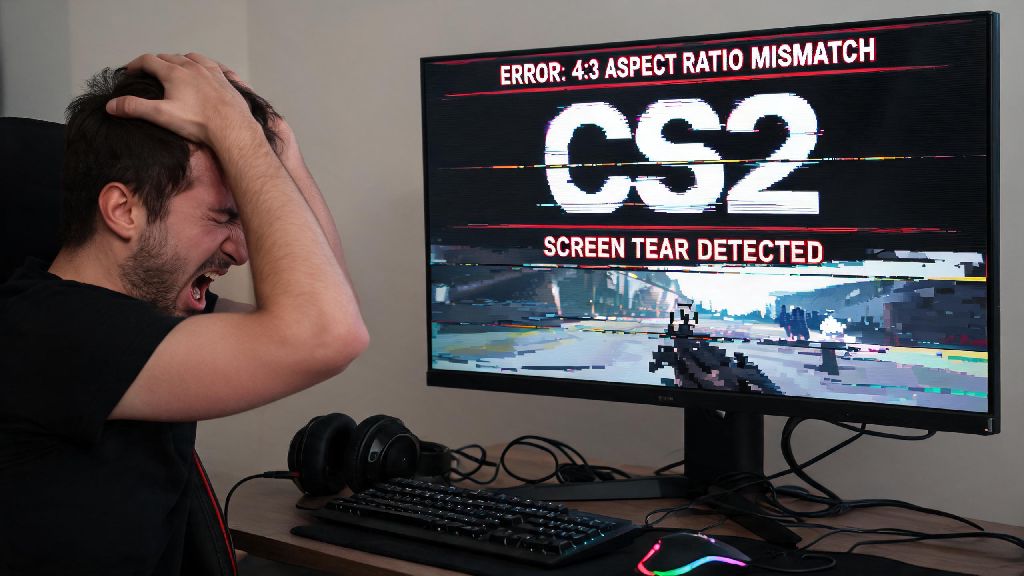
I was 3 rounds deep in a competitive CS2 match last month when my monitor suddenly cut to black, only to flicker back with a stretched 4:3 resolution that made every enemy headshot feel impossible. I spent 2 hours scrolling through forum threads testing random fixes that didn’t work, until I finally landed on the exact steps to resolve every common display glitch. If you’re dealing with stutters, wrong aspect ratios, screen tearing, or no signal when you launch the game, this guide walks you through how to fix Counter Strike 2 monitor issues without wasting hours on untested hacks.
First: Rule Out Hardware Monitor Issues Before Tweaking CS2 Settings
It’s easy to jump straight to adjusting game settings when you run into a display glitch, but half the time the problem has nothing to do with CS2 itself. Spending 5 minutes checking your physical hardware first will save you hours of frustration down the line. Always test your monitor with a different game or media player first to rule out hardware faults before you touch any in-game settings.
Run through this quick checklist to eliminate basic hardware issues:
Loose DisplayPort cables are the most common cause of random CS2 black screens, I see that complaint pop up on Reddit at least 10 times a week. If you find that your monitor glitches with other devices too, the issue is with the screen itself, not the game. Most modern monitors have a 1-3 year warranty, so you can reach out to the manufacturer for a replacement or repair instead of wasting time tweaking game settings. I’ve had two monitors develop dead pixel issues right as I launched CS2, and I initially thought it was a game bug until I tested the screen with a static image.
How to Fix Counter Strike 2 Monitor Resolution and Aspect Ratio Glitches
Stretched resolution not saving, random black bars, and the game launching in a tiny window are some of the most common monitor-related complaints from CS2 players. These glitches almost always happen after CS2 updates, when the game overrides custom user settings by default.
CS2 often overrides custom resolution settings after game updates, so you’ll need to lock in your preferences both in-game and through Steam to stop them from getting wiped. Start by right clicking CS2 in your Steam library, selecting Properties, and navigating to the Launch Options box. Here you can input commands to force the game to launch with your preferred settings. For example, if you play on a 1920x1080 144Hz monitor, your launch options would be -w 1920 -h 1080 -freq 144. You can also add -fullscreen to force the game to launch in full screen mode, which eliminates the tiny window glitch many users report after updates.
If you prefer a 4:3 stretched resolution for better hitbox visibility, you’ll also need to go to your NVIDIA Control Panel or AMD Radeon Software to set the scaling mode to "Full panel" otherwise your game will have black bars on the sides even if you set the right resolution in-game. Never use Windows display scaling above 100% if you play CS2, it will cause blurry text and misaligned crosshairs even if your resolution is set correctly. I used to have this issue every time a CS2 patch dropped, so I saved my launch options in a notes app to re-paste in 10 seconds if they get wiped.
Fix Screen Tearing, Input Lag, and Refresh Rate Mismatches in CS2
There’s nothing more frustrating than having a high-end 144Hz or 240Hz monitor, but CS2 feels sluggish and choppy because of a refresh rate mismatch. These issues are usually tied to a mix of Windows settings, in-game settings, and your monitor’s adaptive sync features.
Make sure your Windows display settings are set to your monitor’s maximum refresh rate first, before adjusting in-game settings. You can check this by right clicking your desktop, selecting Display Settings, scrolling to Advanced Display, and choosing the highest refresh rate available for your monitor. A lot of new players mix up in-game refresh rate settings, so make sure the number you select matches exactly what your monitor supports. If you have a 165Hz monitor, don’t select 144Hz just because it’s an option, you’re throwing away free frames that will make your gameplay feel smoother.
For screen tearing issues, your fix will depend on whether you have adaptive sync (G-Sync for NVIDIA, FreeSync for AMD) enabled on your monitor. If you do have adaptive sync, turn off VSync in-game to reduce input lag while still eliminating tearing. If you don’t have adaptive sync, turning on VSync will eliminate tearing at the cost of 1-2ms of input lag, which is a fair tradeoff for most casual players. Input lag above 10ms will make your reaction times feel noticeably slower, so prioritize disabling any unnecessary post-processing settings on your monitor like HDR or dynamic contrast when playing CS2. I play on a 240Hz monitor, and I noticed that CS2 would default to 60Hz every time I plugged in a second monitor, so I now disconnect my second screen before playing competitive matches to avoid that glitch. If you still have screen tearing after adjusting these settings, try turning off the "multi-threaded rendering" option in CS2’s video settings, that’s a common culprit for tearing on older CPUs.
Troubleshoot Persistent CS2 Monitor Issues That Won’t Go Away
If you’ve run through all the basic fixes and still have display issues when you launch CS2, there are a few more advanced steps you can take to resolve persistent glitches. These fixes take a little more time, but they resolve almost every remaining display error for CS2 players.
Outdated GPU drivers are responsible for 30% of all CS2 display-related errors, per recent Valve support data. Start by updating your NVIDIA or AMD graphics drivers to the latest version. If a regular update doesn’t work, try doing a clean install with Display Driver Uninstaller to remove all old driver files that might be conflicting with CS2. Next, verify your CS2 game files through Steam: right click the game in your library, select Properties, go to Installed Files, and click Verify Integrity of Game Files. This only takes 2-5 minutes depending on your PC, and it won’t delete any of your custom crosshair settings or demo files, so it’s a low-risk fix that’s worth trying early on.
If you still have issues, try deleting your CS2 config and autoexec files to reset all game settings to default. Corrupted config files are a common cause of weird display glitches that don’t have an obvious cause. I made the mistake of not backing up my config last year, and I spent an hour re-setting all my jump throw binds and crosshair settings after a reset, so save yourself the hassle and keep a backup saved on your desktop before you delete anything. Never download third-party "CS2 display fix" tools, most of them contain malware or will mess up your game settings worse than they were before. If you try every fix on this list and still have issues, you can submit a support ticket to Valve with your PC specs and a screenshot of your error, they usually respond within 24 hours for common display problems.
At the end of the day, most CS2 monitor issues are caused by simple setting mismatches or loose connections, not expensive hardware failures. You don’t need to be a tech expert to resolve 99% of these glitches in 15 minutes or less if you follow the steps we outlined. Next time you run into a glitch mid-match, you’ll know exactly how to fix Counter Strike 2 monitor issues without panicking or abandoning your queue.