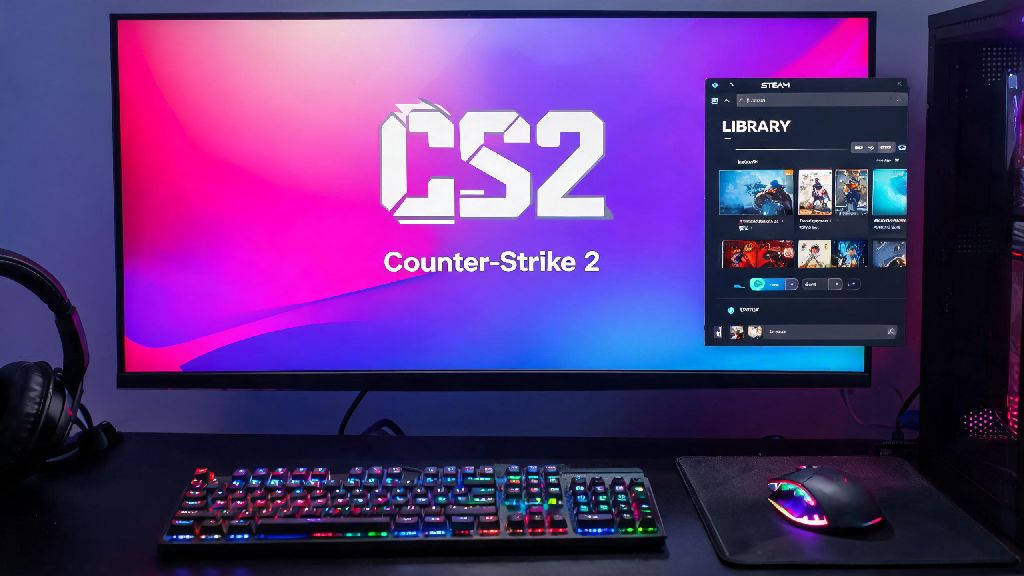
If you’re a regular Counter Strike 2 player, you’ve probably wasted precious minutes digging through your Steam library or desktop clutter to find the game right before a queue pops. Waiting for the Steam client to load, navigating menus, and typing in launch options every time you play kills momentum before you even load into a match. Learning how to create Counter Strike 2 shortcut that fits your playstyle cuts out all that extra friction, so you can jump straight into matches the second you sit down at your PC.
How to Create Counter Strike 2 Shortcut Directly From Steam
This is the easiest, most secure method for 90% of players, as it pulls directly from your official Steam installation to avoid errors or security risks. Open your Steam library and locate Counter Strike 2 in your list of installed games. Right click the game name, hover over the “Manage” option in the dropdown menu, and select “Add desktop shortcut” from the secondary menu that pops up.
Steam will generate a new shortcut on your desktop within two seconds, usually labeled “Counter-Strike 2”. If you don’t see it right away, refresh your desktop by right clicking an empty space and selecting Refresh, or check your desktop folder in File Explorer to make sure it didn’t get sorted into a hidden group. This default shortcut automatically signs you into your linked Steam account, pulls your latest cloud saves, and checks for updates before launching the game.
The only small downside of this method is that it will open the full Steam client if it’s not already running in the background, which can add a few seconds to launch time if you haven’t signed in yet that day. If you want even faster access, you can drag the shortcut to your taskbar or start menu pin list, so you can launch it with one click without minimizing any open windows.
Customizing Your CS2 Shortcut With Advanced Launch Options
Most players don’t realize you can tweak your shortcut to run specific commands as soon as the game opens, from adjusting refresh rate to skipping intro videos, or even automatically loading your preferred practice map. If you often take short breaks between ranked matches to play casual, low-stakes games to reset your focus after a tough loss, you can even set up separate shortcuts for different use cases, so you don’t have to dig through folders every time you want to switch activities. Many players who juggle gaming with quick 10-minute breaks between CS2 queues use Rummy91 for fast, low-effort fun that doesn’t require the same level of focus as competitive ranked play, so they don’t have to navigate away from their gaming setup to find a distraction.
But back to CS2 launch options: once you have your base shortcut set up, right click it, select Properties, and paste your preferred commands in the Target field after the existing file path, making sure to leave a single space between the end of the file path and the first command. Only add launch options you have tested and trust, because untested commands can cause the game to crash on launch or conflict with anti-cheat software, leading to temporary matchmaking bans.
Some of the most popular, safe launch options to add to your shortcut include:
You can combine multiple launch options in the same shortcut, just make sure each one is separated by a single space. For example, a common setup for competitive players looks like this: “C:\Program Files (x86)\Steam\steamapps\common\Counter-Strike Global Offensive\cs2.exe” -novid -refresh 144 -high -console.
Troubleshooting Common CS2 Shortcut Errors
Even if you set up your shortcut correctly, you may run into issues after major CS2 updates or Steam client patches. First fix for broken shortcuts is to delete the old one and make a new one directly from Steam, instead of trying to edit the file path manually. Steam automatically pulls the correct current file path for the game, so this fixes 80% of common shortcut errors in less than a minute.
Another common issue is your shortcut opening the Steam store page instead of the game. That usually happens if you moved the game install folder to a different drive without updating Steam’s library settings. To fix this, open Steam, go to Settings > Storage, and make sure your CS2 install location is listed in the library folders. If it’s not, add the folder manually, then restart Steam and create a new shortcut.
If you get a “missing executable” error when you click the shortcut, it usually means your game files are corrupted. Run a file integrity check through Steam by right clicking CS2 > Properties > Installed Files > Verify integrity of game files, then create a new shortcut once the check is complete. Never download pre-made CS2 shortcuts from third-party sites, as they can contain malware that steals your Steam login credentials or personal data.
Alternative CS2 Shortcut Setup For Advanced Users
If you want to skip the Steam UI entirely and launch the game even faster, you can create a shortcut directly from the CS2 executable file in your install folder. This method is only for users who already have Steam running in the background at all times, as the game still requires Steam to be active to connect to matchmaking and your account.
To set this up, navigate to your CS2 install folder, which is usually located at C:\Program Files (x86)\Steam\steamapps\common\Counter-Strike Global Offensive by default. Find the cs2.exe file, right click it, hover over “Send to”, and select “Desktop (create shortcut)”. Right click the new shortcut, go to Properties, and add -steam to the end of the Target field, leaving a space between the file path and the command. This tells the game to connect to your active Steam session instead of trying to launch a new instance of the client.
This method is only recommended for advanced users, since it can cause sync issues with your Steam cloud saves if you don’t set it up correctly. It also won’t auto-check for game updates before launching, so you’ll have to open your Steam library occasionally to install patches, otherwise you’ll be locked out of matchmaking until you update the game.
Cutting down on unnecessary menu navigation makes every gaming session feel smoother, especially when you’re eager to jump into a ranked queue with friends. Taking five minutes to set up and customize how to create Counter Strike 2 shortcut that matches your play habits pays off every single time you sit down to play, whether you’re jumping in for a single quick match or a full night of grinding ranks. Just make sure you test any custom launch options first, and stick to official Steam-generated shortcuts whenever possible to avoid security risks or technical issues.