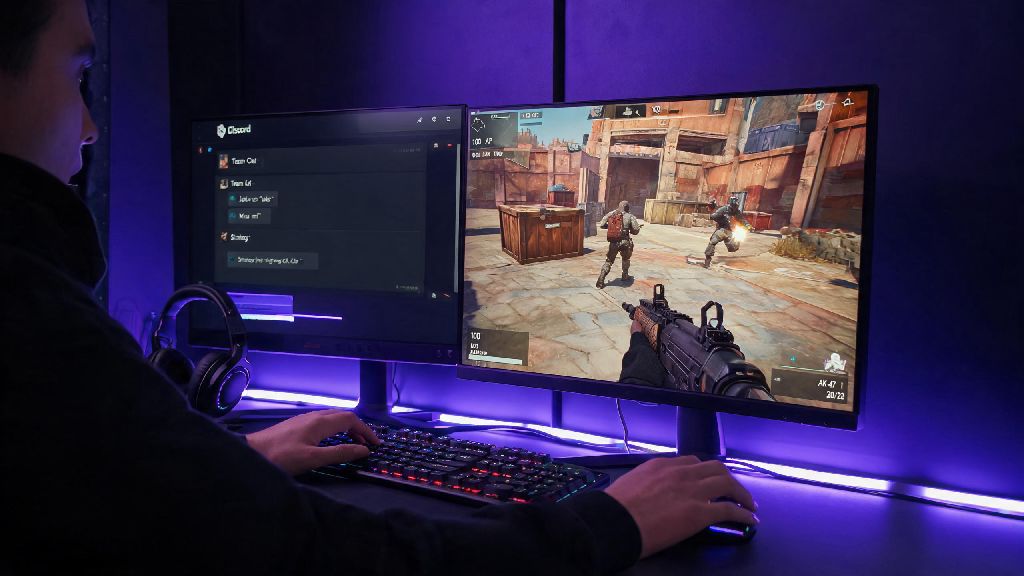
If you’ve ever tried launching Counter Strike with a dual-screen setup, you’ve probably dealt with the frustration of the game loading on your main monitor when you want it on your second. Maybe you want to keep stream chat, Discord calls, or strategy guides open on your primary display while you play, or your second screen has a faster refresh rate better suited for competitive matches. We’ll walk you through every step of the process, no advanced tech knowledge required, so you can get back to playing without unnecessary delays. This guide covers every reliable method to learn how to set up Counter Strike on monitor 2, plus fixes for common issues that pop up during setup.
Step-by-Step Methods to Set Up Counter Strike on Monitor 2
The first and simplest method works for most casual players, and only takes a few seconds to complete. Launch Counter Strike like you normally would, open the settings menu, and navigate to the Video tab. Look for the “Display” dropdown menu, select the option labeled with your second monitor’s name or number, and click apply. The game will switch to the second screen immediately, and it will save this setting for future launches unless you update the game or reset your video configs.
If the in-game setting keeps resetting, you can use Steam launch options to make the change permanent. Right click on Counter Strike in your Steam library, select Properties, and look for the “Launch Options” text box under the General tab. Type -adapter 1 into the box, close the properties window, and launch the game. Windows counts displays starting at 0, so your first monitor is adapter 0 and your second is adapter 1; if this doesn’t work, try -adapter 2 in case you have a third display connected that’s counting as adapter 1.
For players with dedicated NVIDIA or AMD GPUs, you can also set the default display for Counter Strike directly through your GPU control panel. Open NVIDIA Control Panel or AMD Radeon Software, navigate to the “Program Settings” section, select Counter Strike from the list of installed programs, and choose your second monitor as the default display to run the game on. This is the most reliable permanent fix, especially if you regularly switch between display configurations for work and gaming.
Common Issues to Avoid When Configuring CS for a Second Monitor
One of the most frequent mistakes new players make is switching to windowed mode to drag the Counter Strike window to their second monitor. Windowed and borderless window modes add extra input lag because your PC has to render both the game and your desktop background at the same time. Never run CS in windowed or borderless window mode for competitive play, as this can add 5-10ms of extra input lag that will cost you close fights. Always use full-screen exclusive mode after moving the game to your second monitor to keep performance as high as possible.
Another common issue is mismatched resolution or refresh rate after moving the game to the second screen. A lot of newer players assume the game will automatically carry over their resolution settings to the new display, but that’s rarely the case if your two monitors have different specs. Always confirm your monitor's refresh rate is set correctly after moving CS to the second screen, as Windows often defaults to 60Hz even if your display supports 144Hz or higher. You can check this in the same Video settings tab where you selected the second display.
If you get washed out colors or frequent game crashes when running CS on your second monitor, the issue is almost always mismatched HDR settings across your two displays. If you have HDR enabled on your primary monitor but disabled on your second, the game will struggle to switch between the two color profiles when it launches. You can fix this by either enabling HDR on both monitors or disabling it entirely for your Counter Strike display, depending on what your hardware supports.
Optimization Tips for Dual-Screen CS Play
I’ve used a dual-screen setup for CS play for over 5 years, and I’ve tested every trick to make the experience as smooth as possible. I used to deal with constant pop-up interruptions and accidental clicks outside the game window until I started using these simple adjustments:
You don’t need to set your second monitor as your primary display in Windows to run CS on it, which is a common myth that leads to a lot of unnecessary setup hassle. You can keep all your desktop shortcuts and default app launches on your primary monitor, and only assign Counter Strike to run on the second screen using the methods we covered earlier.
If you stream your CS gameplay, capturing the second monitor that’s running CS is far easier than capturing a specific game window, especially if you frequently switch between matches, Steam menus, and workshop maps. You won’t have to adjust your capture source every time you close and reopen the game, and you’ll avoid the black screen issues that sometimes happen when capturing full-screen games via window capture.
Is Using a Second Monitor for CS Worth It for Competitive Play?
That depends entirely on your setup and play style, but most players get a lot of value out of a dual-screen configuration if they set it up correctly. The biggest benefit is that you never have to alt-tab out of the game to check stream chat, respond to Discord messages, or look up smoke lineups for the map you’re playing. Alt-tabbing can cause CS to crash or stutter, especially if you’re running high graphics settings, so avoiding that alone makes the setup worth it for many players.
The main downside is the risk of accidental clicks outside the game window if you don’t set up a cursor lock. I lost a 1v5 clutch rank up game a few years ago because I dragged my mouse too far to the left mid-fight and clicked on a Discord window on my primary monitor, so I always recommend testing your setup in casual matches first before jumping into ranked play. You can also adjust your Windows mouse settings to slow down cursor movement between screens if you don’t want to use a lock hotkey.
Always assign your highest refresh rate, lowest input lag monitor to run CS, even if it’s labeled as your secondary display in Windows settings. If your second monitor is only 60Hz, it’s better to keep it for secondary apps and run CS on your faster primary display. The extra convenience of a second screen isn’t worth sacrificing the reaction time you get from a high refresh rate display for competitive play.
At the end of the day, setting up CS to run on your second monitor takes less than 10 minutes if you follow the steps we covered. Test your setup in a casual deathmatch or workshop map before jumping into a competitive ranked game, to make sure there’s no input lag, alignment issues, or other glitches. Now that you know how to set up Counter Strike on monitor 2, you can enjoy all the convenience of a dual-screen setup without sacrificing the performance you need to win matches.