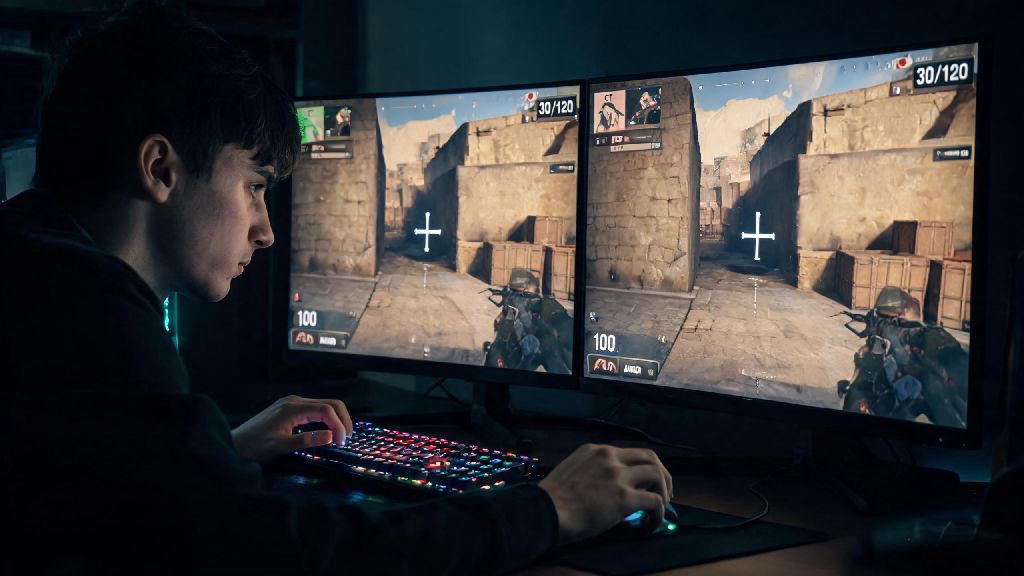
If you’ve ever found yourself squinting to spot an enemy peeking from the far edge of your single monitor during a tense CS clutch, you know how much limited field of view can cost you a round. I once lost a 1v5 clutch because an enemy peeked from the far left edge of my screen that I could barely see, which is what pushed me to test dual screen setups in the first place. I spent months testing different display configurations for competitive play before figuring out how to play Counter Strike on 2 screens without ruining my input lag or crosshair alignment. Most online guides skip over the small, frustrating quirks that come with dual monitor play, like stretched HUD elements or misaligned audio cues, so I put together this tested, no-fluff guide to get you set up right. You don’t need top-tier gear to pull this off either – most mid-range gaming PCs can handle a dual screen setup for CS with just a few quick tweaks.
Pre-Setup Checks Before You Learn How to Play Counter Strike on 2 Screens
You don’t need to run out and buy two identical high-end monitors to try this setup, but there are a few non-negotiable checks to run first to avoid major headaches later. First, make sure you have DisplayPort or HDMI 2.0 cables for both monitors. Older HDMI 1.4 cables can only support 60hz at 1080p, which will cause choppy gameplay if you’re used to higher refresh rates. Second, prioritize matching monitor specs as much as possible. If one monitor is 144hz and the other is 60hz, you’ll get constant screen tearing and uneven motion that will throw off your aim. You don’t need identical monitors, but matching refresh rate and resolution is a must for playable performance.
Third, confirm your GPU compatibility before you start adjusting settings. Most graphics cards made in the last 5 years support at least two displays, but you’ll need to make sure you have enough open ports on your GPU (not your motherboard, because integrated graphics will add massive input lag) to plug both monitors in. Once you confirm all these boxes are checked, you’re ready to move on to actually setting up how to play Counter Strike on 2 screens without glitches.
Step-by-Step Dual Monitor Setup for Counter Strike
The actual setup process takes less than 10 minutes if you follow these steps in order. First, plug both monitors into your dedicated GPU, then right click your Windows desktop and open Display Settings. Make sure both monitors are detected, set them to the same resolution and refresh rate, and drag the display icons to align horizontally with no gap between them. If one monitor is higher than the other in the display settings, your cursor will drift up or down when you move between screens, which will mess with your aim in game.
Next, open your GPU control panel. For NVIDIA users, open NVIDIA Control Panel, go to 3D Settings > Configure Surround, PhysX, and check the “Span displays with Surround” box. For AMD users, open Radeon Software, go to Display > Eyefinity, and create a new Eyefinity display group. Both tools will automatically combine your two monitors into one single wide display. Then launch Counter Strike, go to Video Settings, and select the combined resolution of your two monitors (for two 1080p monitors, this will be 3840x1080). Adjust your field of view (FOV) to 105 or 106 – any higher and you’ll get distracting fish-eye distortion, any lower and you won’t get the full benefit of the wider display. This combined resolution is what will give you the wide field of view that makes playing Counter Strike on 2 screens so useful.
Common Dual Screen CS Issues and How to Fix Them
Even if you follow the setup steps exactly, you might run into a few annoying bugs that most guides don’t mention. I’ve run into all of these at least once during testing, so these fixes are all tried and tested and take less than two minutes each to implement.
I’d recommend testing your setup in a casual deathmatch first before jumping into ranked play, so you can tweak settings without risking your rank. It takes most players 2-3 matches to get used to the wider field of view, so don’t get frustrated if your aim feels off the first time you try it.
Is Dual Screen Play Worth It for Competitive Counter Strike?
A lot of players ask me if the extra effort of setting up two screens is actually worth it for ranked play, and the answer depends on what you prioritize. First, the biggest benefit: you get 30% wider peripheral vision compared to a standard single 16:9 monitor, which means you can spot enemies peeking from the sides far earlier than opponents with single screens. You can also keep a second screen open for stream chat, team comms notes, or map callout guides if you’re learning new maps, which is a huge plus for casual players and streamers.
But there are downsides too. The bezels between the two monitors create a small blind spot right in the middle of your view, which can take a few weeks to get used to. You also might find that the wider FOV makes long-range shots a little harder at first, since targets appear smaller on the horizontal axis. If you’re a top-tier competitive player grinding for Global Elite or planning to enter tournaments, note that official CS tournaments don’t allow dual monitor setups, so you might want to stick to a single monitor to match tournament conditions. For casual players or anyone who streams their gameplay, though, the extra immersion and advantage of a wider field of view almost always outweigh the small downsides.
At the end of the day, figuring out how to play Counter Strike on 2 screens is all about tweaking settings to fit your playstyle, not just following a generic setup guide. Spend 10-15 minutes testing different FOV and crosshair settings in casual matches, and don’t be afraid to adjust things if something feels off. You don’t need to spend hundreds of dollars on new monitors to try this either – if you have an old spare monitor lying around, you can test the setup for free to see if it works for you. Whether you’re playing for fun or trying to climb the ranked ladder, a dual screen setup can add a whole new layer of immersion and advantage to your CS games if you set it up right.