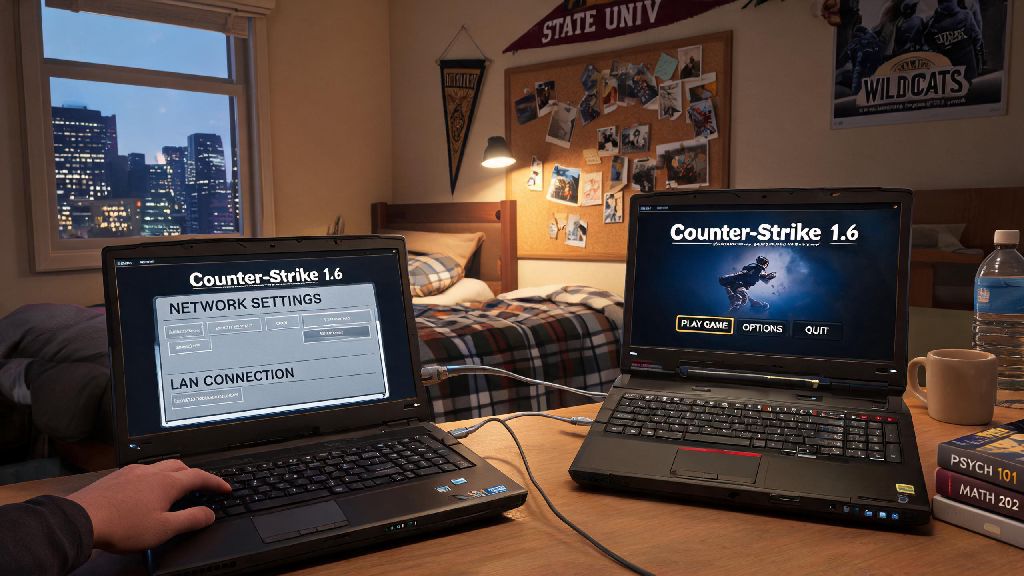
If you’ve ever showed up to a friend’s place with your laptop and wondered how to play counter strike between 2 laptops without hopping on public servers full of random players, you’re not alone. I still remember my first attempt at this back in college: my roommate and I both had beat-up old gaming laptops, we wanted to play a 1v1 CS 1.6 match to settle a bet, and we spent almost an hour messing with network settings before we finally connected. Turns out we just had to turn off his laptop’s firewall, which we didn’t think of until we’d already restarted both devices three times. This guide cuts through that confusion, covering both in-person offline matches and remote online lobbies, so you can spend less time troubleshooting and more time playing.
Prerequisites You Need Before Setting Up Your 2-Laptop CS Match
You don’t need any fancy paid equipment to get your match running, but there are a few non-negotiable basics you need to check off first to avoid common connection errors. Skip any of these, and you’ll likely end up staring at a “connection failed” screen instead of loading your favorite map.
Matching game versions are non-negotiable—if one of you has the latest CS2 update installed and the other hasn’t updated their game in two months, you won’t be able to connect, even if all your network settings are perfect. For offline matches using a direct Ethernet cable, you don’t need any internet access at all, which makes this setup perfect for hotel rooms, campus dorms with restricted networks, or camping trips with portable power. If you’re playing remotely, you’ll both need a working internet connection and active Steam accounts with your CS copy linked.
How to Play Counter Strike Between 2 Laptops Over a Local Offline Network
This is the best option if you and your friend are in the same physical space, because it has almost no lag and doesn’t use any internet bandwidth. The setup takes less than 5 minutes once you know the steps.
First, connect both laptops to the same local network. If you’re using Wi-Fi, make sure both are on the same private network, not a public guest network that blocks device-to-device connections. If you’re using a direct Ethernet cable, just plug the cable into both laptops’ Ethernet ports; most modern laptops will automatically detect the connection within 30 seconds. Next, pick which laptop will act as the host. The host laptop should be the one with the better specs, since it will be running the local server for the match.
On the host laptop, open Counter Strike, go to the Play menu, select Private Match, and adjust your settings: pick your map, game mode, and set the maximum number of players to 2. Most importantly, set the server visibility to local network only so random people on the same Wi-Fi can’t join your match. Once the match loads, the host needs to find their local IPv4 address: on Windows, open Command Prompt, type “ipconfig”, and look for the IPv4 address under your active network; on Mac, go to System Settings > Network to find the address. On the second laptop, open CS, enable the developer console in the game settings (it’s under the Game tab), press the ~ key to open the console, and type “connect [host’s local IP address]” without the brackets.
If the connection times out, the most common issue is the host’s firewall blocking the game connection. Just go to Windows Defender Firewall settings, allow Counter Strike through the firewall for private networks, and try again. Offline local play has almost zero lag, so it’s perfect for competitive 1v1s, casual deathmatches, or even custom practice maps where you and your friend are working on your aim together.
Simple Ways to Set Up an Online 2-Player CS Lobby If You’re Not In the Same Place
If you and your friend are in different locations, you don’t need to pay for a dedicated server to play a private 2-player match. The built-in tools in CS2 work for 90% of cases, and there are free workarounds for the rare connection issues.
The easiest method is to use Steam’s built-in private match feature. The host opens CS2, creates a new private match, sets a strong password, and invites the second player directly through their Steam friends list. The second player just needs to accept the invite, enter the password, and they’ll join the match right away. Always set a password for online private lobbies to stop random players from finding your server and crashing your 1v1 session. This method works as long as both of you have open or moderate NAT types on your internet connection.
If you run into NAT type issues that stop you from connecting, you can use a free LAN tunneling app to create a virtual local network between the two laptops. Both of you just download the app, join the same virtual network, and follow the same steps as the offline local setup. You don’t need to pay for any premium tiers of these apps for a 2-player match; the free plans have more than enough bandwidth for a smooth CS game. Just make sure you both download the same version of the tunneling app to avoid compatibility issues.
Pro Tips for Lag-Free 2-Laptop CS Matches
Even if your connection is set up correctly, small issues can cause lag, frame drops, or input delay that ruins your match. These simple fixes will make your game run as smoothly as possible, even if you’re using mid-range laptops.
First, close all background apps on both laptops that use internet or processing power before you start playing. Streaming services, cloud sync tools, browser tabs with video calls, and even Discord voice chat can eat up bandwidth and CPU resources that you need for a smooth game. If you need voice chat, use the built-in Steam voice chat instead of third-party apps, since it uses less bandwidth for 2-person calls.
If you’re playing over Wi-Fi, connect to the 5GHz band instead of the 2.4GHz band if your router supports it. The 5GHz band has less interference from other devices, so you’ll get a more stable connection with less lag. If possible, stay within 10 feet of the router to avoid signal drops. Use a wired mouse and keyboard if you can—laptop built-in keyboards and trackpads work, but you’ll have much better control for accurate aim and fast movement, which makes the game way more fun.
If you’re getting frame drops during the match, lower your in-game video settings. Turn off anti-aliasing, lower shadow quality, and reduce the render resolution to match your laptop’s native screen size. These changes have a tiny impact on how the game looks, but they can double your frame rate on older laptops. For 1v1 matches, you don’t need super high graphics anyway; you just need smooth performance to hit your shots.
You don’t need expensive gear or a paid server to play private CS matches with a friend, whether you’re in the same room or across the country. The steps are simple once you know what common pitfalls to avoid, like mismatched game versions or firewall blocks. Now that you know how to play counter strike between 2 laptops, grab your friend, pick your favorite map, and skip the random public server chaos for your next match.