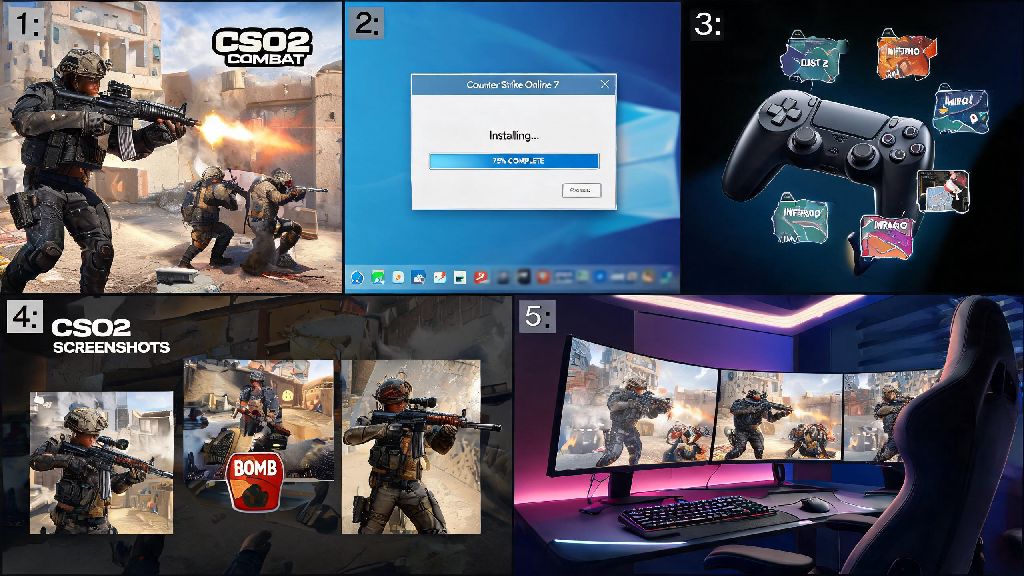
If you’ve been itching to jump into the fast-paced, team-based action of one of the most beloved tactical FPS spinoffs, you’ve probably run into confusing, conflicting advice online about how to install Counter Strike Online 2 without running into broken launchers, missing file errors, or region locks. I’ve set up this game for over a dozen friends over the last year, so I’ve sorted out every common pitfall to make the process as painless as possible for new players. This step-by-step walkthrough works for all Windows 10 and 11 devices, and includes fixes for the most frequent setup issues you might hit along the way.
Pre-Requisites You Need Before You Install Counter Strike Online 2
Before you download any files, take 5 minutes to confirm your device meets all basic requirements to run the game smoothly. Skipping this step is the most common reason people end up with failed installs or unplayable performance once they get the game running. First, make sure you have admin access on your Windows device, as the launcher will need permission to write files to your storage drive and connect to game servers. You’ll also need a stable internet connection with at least 10Mbps download speed to avoid corrupted files during the download process.
The official minimum specs to run the game without major issues are as follows:
Don’t skip checking these specs first, because trying to install the game on a device that doesn’t meet minimum requirements will almost always lead to crashes mid-setup or unplayable frame rates once you launch. That means you should also take two minutes to update your graphics drivers before you start the download process, as outdated drivers are the number one cause of unexpected CSO2 launch errors. You don’t need any extra third-party software to run the official build, so avoid any sites that ask you to download extra “launcher fixes” before you even start the official setup.
Step-by-Step Official Installation Process for CSO2
Once you’ve confirmed your device meets all pre-requisites, you’re ready to start the setup process. First, only download the launcher from the official regional publisher site to avoid malware or modified game files that can get your account banned. Different regions have different official publishers, so pick the one that matches your physical location to get the lowest possible ping once you start playing. If you want to play with friends in another region, you can use a gaming VPN later, but it’s always best to start with the launcher for your local region first.
Once the launcher installer is downloaded, right-click the file and select “Run as administrator” to avoid permission errors during setup. You’ll be prompted to choose an install location for the launcher – if you have restricted admin rights on your device, avoid installing it to the Program Files folder, as this can cause write errors later. Select a folder on your main storage drive that you have full access to, then wait for the launcher to finish installing.
When you open the launcher for the first time, you’ll be asked to either log in to an existing account or create a new one. Follow the prompts to set up your account, then the launcher will automatically start downloading the full game files. Don’t close the launcher mid-download because that can corrupt game files, forcing you to restart the entire process. If your internet cuts out or you need to pause the download, you can do so safely, but only resume when you have a stable connection to avoid partial file downloads. I’ve made the mistake of closing the launcher halfway through a 10GB download before, and I had to delete all partial files and start over, so trust me when I say it’s worth waiting the extra 10 minutes to let it finish uninterrupted.
Common Installation Errors and How to Fix Them Fast
Even if you follow all the steps perfectly, you might run into one of a few very common errors that most new players face. These are all easy to fix in just a couple of minutes, no advanced tech knowledge required. The first most common error is the missing DLL file pop-up when you try to launch the game for the first time. This almost always happens because you don’t have the latest Visual C++ redistributable packages installed on your device. You can download the official Visual C++ bundle directly from Microsoft’s site for free, no need to download random DLL files from untrusted sites that might carry malware.
The second common error is a region lock notification when you open the launcher. This happens if you downloaded a launcher for a different region than your current IP address location. The fix is simple: either download the correct launcher for your region, or if you intentionally want to play on a foreign server to join friends, use a gaming VPN that’s explicitly allowed by the game’s publisher. Note that some regions ban VPN use, so check the publisher’s terms of service first to avoid getting your account suspended.
The third frequent error is the “missing game executable” notification after the download finishes. This almost always happens because your antivirus program quarantined the game’s launch file by mistake. Most antivirus programs flag game launchers as potential risks because they connect to external servers regularly, so this is a false positive 99% of the time. Add the CSO2 install folder to your antivirus’s whitelist before you run the launcher for the first time, and you’ll avoid this issue entirely.
Post-Installation Steps to Optimize Your CSO2 Gameplay
Once the game launches successfully, don’t jump straight into a competitive match right away. Take 10 minutes to adjust your settings first to make your gameplay experience as smooth as possible. First, go to the graphics settings tab and adjust the quality levels to match your device’s specs. If you’re getting less than 60 frames per second, turn off unnecessary effects like motion blur, ambient occlusion, and anti-aliasing first, as these have the biggest impact on performance without affecting gameplay clarity.
Next, head to the controls tab to adjust your settings. Calibrate your mouse sensitivity and crosshair settings first, so you don’t have to adjust mid-match when you’re already playing against other players. If you’ve played other Counter Strike games before, note that CSO2 has slightly different movement and recoil mechanics, so test your settings in the practice range first to make sure they feel right for you.
Finally, adjust your audio settings to prioritize team voice chat over background music and sound effects if you plan to play with friends. CSO2 is a heavily team-based game, so being able to hear callouts from your teammates is far more important than loud background music. You can also link your social media accounts to your game profile to find friends who already play, so you don’t have to queue with random players every time you log on. If you’re completely new to tactical FPS games, run through the short in-game training mode first to learn the basics of movement, shooting, and objective play before you join public matches.
By following these steps, you’ll be able to install Counter Strike Online 2 and start playing with your friends in less than an hour, even if you’ve never set up a multiplayer FPS game on your device before. Most of the issues people run into during setup are completely avoidable if you take the two minutes to check pre-requisites and download only official files, so don’t rush through the initial steps. If you do hit an error that’s not covered in this guide, you can usually find a fix in the official CSO2 community forums, where other players share solutions for less common setup bugs. Once you’re in the game, take your time learning the maps and mechanics, and don’t get discouraged if you lose your first few matches – even the best CSO2 players started exactly where you are now.