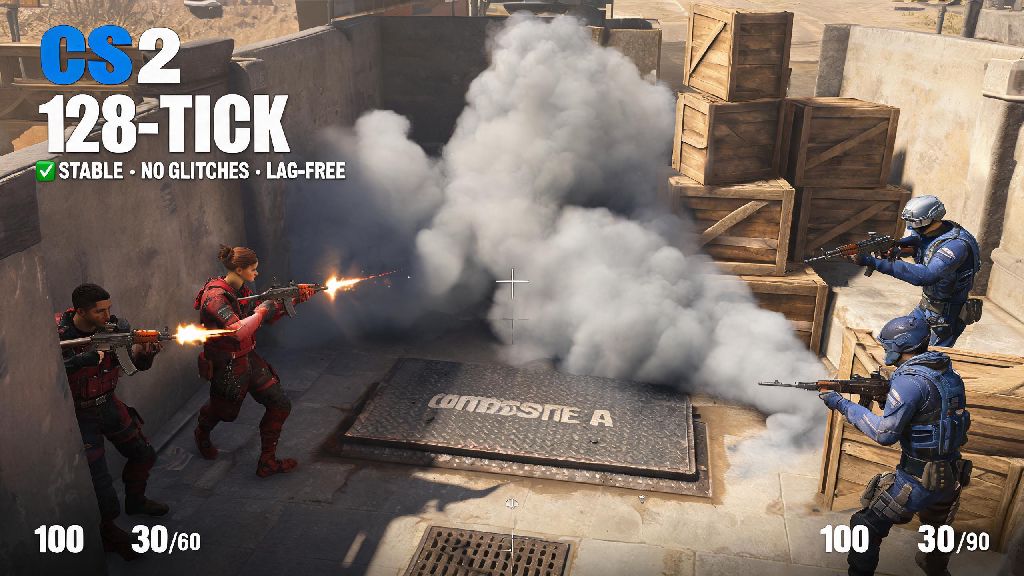
If you’ve been seeing clips of CS2’s updated smoke physics, revamped maps, and smooth 128-tick servers pop up on your social feeds, you’re probably eager to jump in yourself. But a lot of new players run into roadblocks when they try to access the game, from missing install options to eligibility errors that don’t come with clear fixes. This guide breaks down exactly how to enable Counter Strike 2, no confusing tech jargon required, even if you’ve had trouble accessing the game before. We’ll cover every supported platform, common fixes for access issues, and quick tweaks to make sure your first launch goes off without a hitch.
How to Enable Counter Strike 2 on Steam for PC
CS2 is a free, automatic update for anyone who owns a copy of Counter-Strike: Global Offensive on Steam, so you won’t have to pay extra to access the full game. You do not need to pay for CS2 if you already own CS:GO, and any skins, inventory items, or rank progress you had in the old game will carry over automatically to CS2. The installation process is straightforward for most users, but we’ve broken it down step by step to avoid any confusion:
If you still don’t see CS2 in your library after restarting Steam, double-check that your CS:GO copy isn’t linked to a different account. A lot of players who shared CS:GO with family members in the past run into this issue, since CS2 access is tied directly to the account that originally purchased or redeemed CS:GO. Ensure you have at least 20 GB of free storage before starting the download, as temporary installation files can take up extra space and cause errors if your drive is almost full. You also won’t see the install option if your Steam account has an active VAC ban for CS:GO, as bans carry over to the new game permanently.
How to Fix Common CS2 Access Errors
Even if you meet all eligibility requirements, you might run into small errors when trying to install or launch CS2 for the first time. Most of these issues have simple fixes that take less than two minutes to complete, so you don’t need to reach out to support right away if you run into a problem. One of the most common errors new players see is the “missing content manifest” notice when they try to install CS2. This almost always happens because your Steam client is out of date. To fix it, click the “Steam” tab in the top left corner of the app, select “Check for Steam Client Updates”, and install any available patches before restarting the app and trying again.
Another common issue is the “game failed to launch” error that pops up right after you click the play button. Verifying game file integrity fixes 70% of common launch errors, and you can do this by right-clicking CS2 in your Steam library, selecting “Properties”, going to the “Installed Files” tab, and clicking “Verify integrity of game files”. Steam will scan for missing or corrupted files and replace them automatically, which usually fixes the launch issue. If you’re getting an error that says CS2 is not available in your region, double-check that your Steam account’s region matches your current physical location, as region spoofing can block access to the game. Slow download speeds are another common complaint, and you can fix that by changing your Steam download server to one that’s closer to your location, or pausing other downloads on your network while the game installs.
Enabling CS2 on Supported Consoles
CS2 is now available for PlayStation 5 and Xbox Series X/S, and the installation process is just as simple as it is on PC for most users. The game is free to download for all console users, and if you owned the legacy CS:GO console port, your game should have updated to CS2 automatically when it launched. Console players do not need a separate purchase to access CS2 if they owned the legacy CS:GO console port, and any inventory items you had in the old game will carry over just like they do on PC. If your game didn’t update automatically, you can search for Counter Strike 2 directly in your console’s store and download it for free.
For PlayStation 5 users, you can also find CS2 in the “Game Catalog” if you have an active PlayStation Plus subscription, though you don’t need Plus to download the base game. You will need an active Xbox Live Gold or PlayStation Plus subscription to play online multiplayer matches, though, just like with most other console online games. I’ve noticed that console launch times are a bit slower than PC right now, but Valve is rolling out performance patches every few weeks to fix that, so it should improve over time. Keep in mind that custom community servers and some workshop features are still rolling out for console versions, so you might not see those options right after you install the game.
Post-Enable Tweaks to Improve Your First CS2 Experience
Once you get CS2 installed and launched, there are a few quick tweaks you can make to get the best possible experience before you jump into your first match. First, take a minute to adjust your crosshair settings, as the default crosshair is hard to see for most players. You can import your old CS:GO crosshair using a share code if you have one, which saves you the trouble of adjusting every setting manually. You should also turn on net graph to monitor ping and packet loss during matches, as high ping or packet loss can make the game feel unresponsive even if your frame rate is high. You can enable net graph by typing “net_graph 1” into the in-game console, which you can turn on in the game settings menu.
Next, adjust your audio settings to prioritize footsteps and enemy callouts over background music. Footsteps are one of the most important sources of information in CS2, so turning down the in-game music volume and turning up ambient audio volume will make it much easier to hear enemies approaching from other areas of the map. If you’re playing on PC, turn off unnecessary visual effects like motion blur and depth of field to boost your frame rate, since higher FPS gives you a clear advantage in fast-paced gunfights. For console players, you can choose between performance mode (120 FPS at 1080p) or quality mode (60 FPS at 4K) depending on what your display supports. Most competitive players stick to performance mode to get the smoothest possible gameplay. If you’re new to CS2 entirely, play a few casual matches first before jumping into competitive, to get used to the updated smoke mechanics and recoil patterns that are different from CS:GO.
At the end of the day, getting access to CS2 is far simpler than most people make it out to be, as long as you follow the steps for your platform and check for common eligibility issues first. You don’t need fancy hardware or a premium account to play, just a valid copy of CS:GO on Steam or a supported console, and enough storage space for the game files. Now that you know how to enable Counter Strike 2, you can jump into matches, test out the updated maps, and start climbing the ranked ladder whenever you’re ready. If you run into any rare errors that aren’t covered here, you can check the official CS2 support page for the latest patch notes and issue fixes.