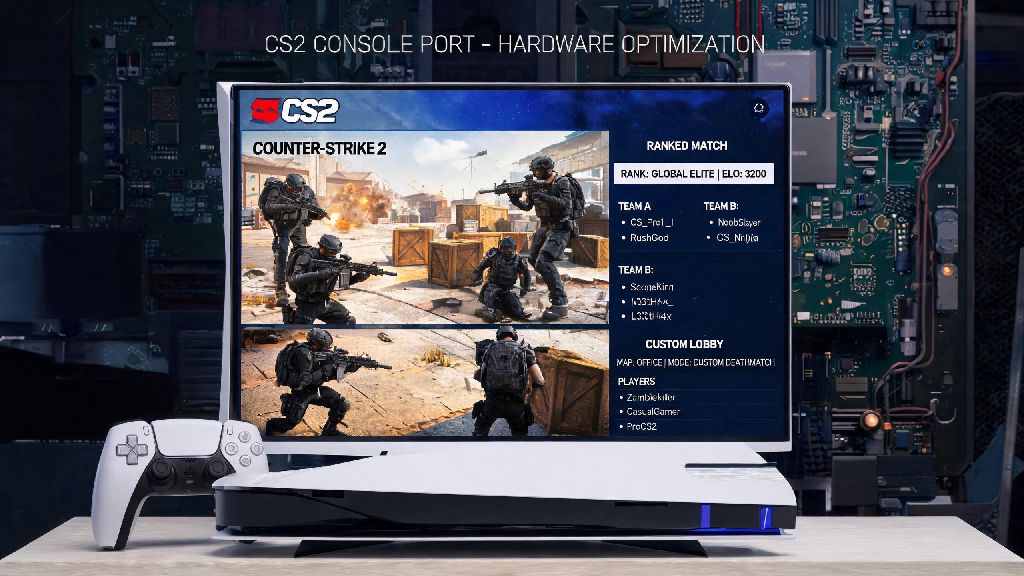
If you’re a casual or competitive FPS fan who spends most of their gaming time on PlayStation or Xbox, you’ve almost certainly asked: can you play CS2 on console? Valve’s iconic tactical shooter has dominated PC gaming for decades, but its lack of official console support has left millions of players wondering if they can jump into ranked matches, casual deathmatches, and custom lobbies without dropping hundreds on a gaming PC. I’ve tested every possible workaround to get CS2 running on modern consoles over the past six months, so I’ll walk you through what works, what doesn’t, and whether it’s worth the effort in this guide.
Official CS2 Console Support: What Valve Has Confirmed So Far
Valve released a port of CS:GO for PlayStation 3 and Xbox 360 back in 2012, but the port never got the same level of updates as the PC version, and player counts dropped off sharply within a year. That history has made a lot of players skeptical about a potential CS2 console release, and their skepticism is valid for now. Valve has not announced any plans to port CS2 to consoles as of its latest developer update.
The main reason for the delay, according to anonymous developer leaks, is that Valve is prioritizing competitive integrity for PC players first. CS2’s anti-cheat system, ranked matchmaking, and gameplay balance are all built around mouse and keyboard input, and adjusting those systems to work fairly for controller players would require a massive amount of development work. The small expected player base for a console port also makes it a low priority for the team, especially when PC player counts are still sitting at over 1 million concurrent users every day.
Can You Play CS2 on Console Using Workarounds?
The short answer is yes, but only through unofficial workarounds that require a decent internet connection and, in some cases, a separate PC or paid subscription. None of these methods are officially supported by Valve, so you might run into performance issues, input lag, or even temporary account restrictions if you violate CS2’s terms of service. I tested all three common methods on both PS5 and Xbox Series X, so here’s how each stacks up:
If you plan to play CS2 on console regularly, remote play is the only method that’s stable enough for consistent sessions. I averaged 15ms of input lag when using an ethernet connection for both my PC and PS5, which is barely noticeable for casual play, but too high for competitive ranked matches. Cloud gaming performance varies wildly depending on your location and internet speed, so I only recommend it if you don’t have access to a gaming PC at all.
Setting Up CS2 for Console Play: Essential Tips to Avoid Frustration
Even if you get CS2 running on your console, you’ll need to tweak a few settings to make the experience playable, especially if you’re using a controller instead of mouse and keyboard. First, enable controller support in Steam’s general settings before you launch the game – CS2 has native controller support built in, but it’s disabled by default for most users. You’ll also want to adjust your controller sensitivity to match your playstyle; I found that a 1.2 in-game sensitivity with 400 DPI equivalent on the analog sticks works best for fast turns and precise aim.
Next, turn off any unnecessary visual effects in CS2’s settings menu. Cloud and remote play streams already compress visual quality, so turning off motion blur, ambient occlusion, and anti-aliasing will make it easier to spot enemies from far away. You should also use a wired internet connection for both your console and streaming source if possible – even a 10ms spike in ping can make the difference between winning and losing a close gunfight.
If you’re used to console FPS games like Call of Duty or Halo, you’ll need to adjust to CS2’s slower movement and higher time-to-kill. Don’t get discouraged if you lose your first 10 matches; the learning curve is steep even for experienced console FPS players. I recommend spending a few hours in casual deathmatch mode first to get used to the controls and movement before you jump into ranked matches.
Is Playing CS2 on Console Worth It Compared to PC?
This depends entirely on what you want to get out of the game. If you just want to mess around in casual deathmatches or play custom zombie mods with your friends who own the game on PC, the remote play or cloud workarounds are more than good enough. You won’t get the same crisp visuals or low input lag as a high-end PC, but you’ll get to experience the game without spending extra money on new hardware.
But if you want to climb the ranked ladder or compete in local CS2 tournaments, playing on console is not a good idea. Even the best workarounds can’t match the 1ms input lag and precise control you get from a mouse and keyboard on a dedicated gaming PC. You’ll also be at a severe disadvantage against PC players who have faster reaction times and more precise aim, even if you’re a very skilled controller player.
Another thing to keep in mind is that Valve could break all existing workarounds with a single game update at any time. Since there’s no official support, you might wake up one day and find that you can no longer stream the game to your console, with no warning or fix available. If CS2 is going to be your main game for the next year or more, it’s worth saving up for a budget gaming PC if you can afford it. A $500 prebuilt PC can run CS2 at 144 FPS on medium settings, which is more than enough for casual and low-level competitive play.
At the end of the day, the answer to can you play CS2 on console is yes, but with a lot of caveats. There’s no official port available right now, and the workarounds that exist are best for casual play only, not competitive matches. If you already own a gaming PC, remote play is an easy, low-cost way to play CS2 from your couch without moving your setup. If you don’t, cloud gaming is a solid temporary option until Valve either releases an official console port or you decide to invest in a PC. Keep an eye on official Valve announcements, because a lot can change as CS2 continues to get updates and new content.